Keep the same character across shots in AI video
A director's method to keep the same character from shot to shot in AI video: references, Kling Elements, Seedance, Google Flow, Runway, shot planning.
Contents · 8 sections
To keep the same character from one shot to the next in AI video, you need three things, in this order: a fixed reference of the character before the first shot (one master image plus two or three angles), the video model's reference feature instead of plain text (Elements in Kling, reference-to-video in Seedance, Ingredients in Google Flow, References in Runway), and a shot list that stays away from the shots where faces drift. A prompt alone won't hold a face. Every clip is a fresh generation, and the model remembers nothing.
Back in the spring I wrote about why characters change from scene to scene, the diagnosis side. This piece is the production method, for video, based on what each vendor documents today. Everything about the tools comes from their official pages, checked on October 20, 2026. I didn't run a single generation for this article.
Why your character changes between two clips
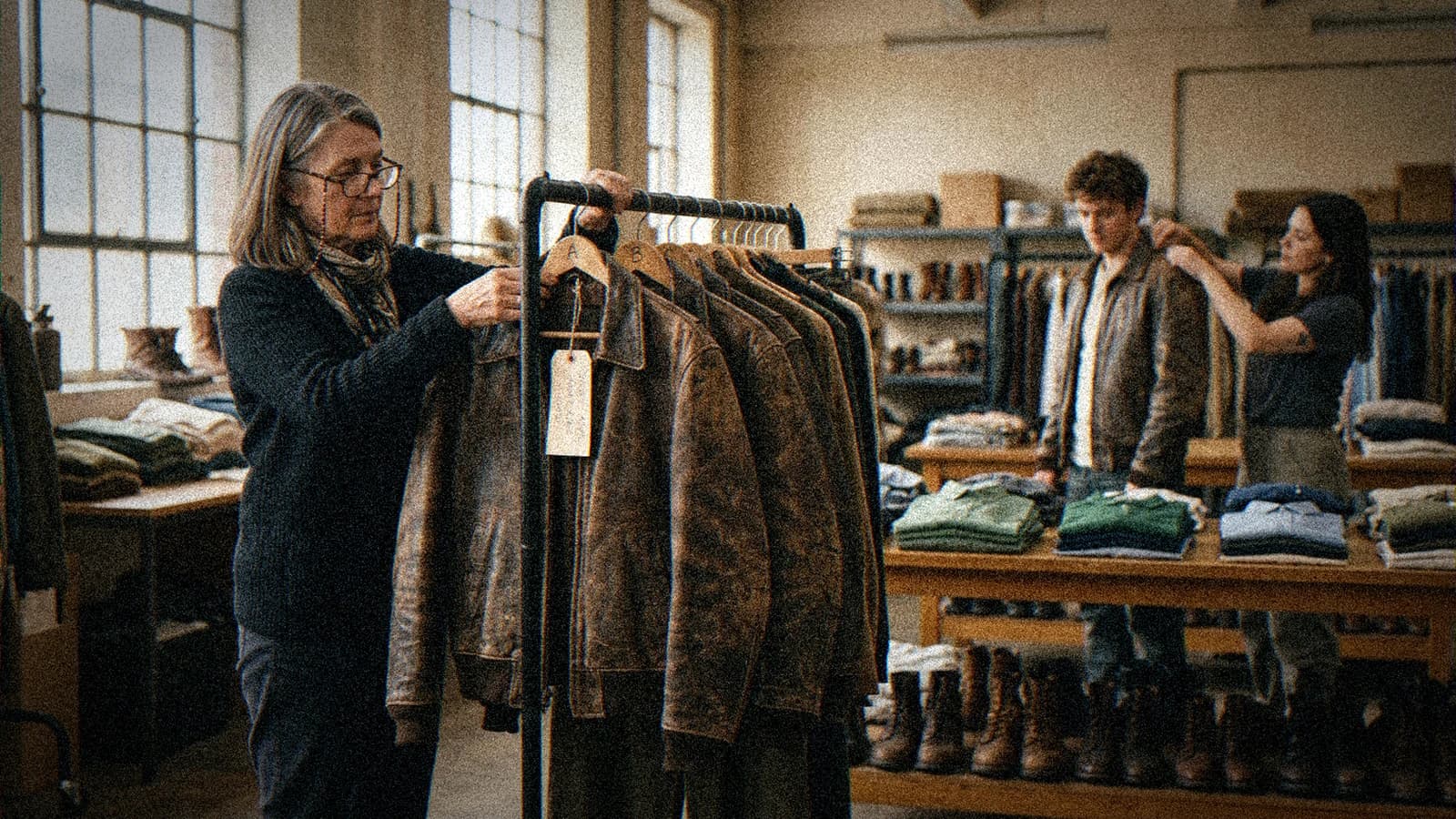
On a real shoot, the costume department buys three or four copies of the same jacket and distresses them in the same spots. If the actor ruins the first one, the second steps in and nobody sees the switch on screen. Continuity gets built before anyone calls action.
A video model has no costume department. When you generate shot 2, it has no idea what shot 1 looked like. It reads your prompt again, rolls a new interpretation, and "a woman in her forties with short hair" can turn into ten different women. With stills, you can reroll until you get the right one. In video the problem compounds: the face moves, turns, drops into shadow, and every frame of the clip is one more chance to drift.
Three moments break a likeness more than any other:
- profile and three-quarter back views, because the model has to invent a part of the face it never saw in your reference;
- strong lighting changes, where the shape of the nose and cheekbones gets redrawn;
- long clips, where small differences pile up second after second.
All three are handled before you generate anything, the same way the costume supervisor buys her four jackets before day one of the shoot.
Step 1: build the reference before the first shot
Everything starts from one master image: your character facing camera, neutral light, calm expression, full outfit visible. Think of it as the fitting photo the costume team pins to the wall. Runway gives the same advice for its references: a good photo of the subject, even and natural light, a neutral expression as a blank canvas.
From that image, make two or three more views: a three-quarter, a profile, a mid shot that shows the silhouette and the shoes. They will feed the models that accept several images. I covered how to make them cleanly as stills in consistent characters across multiple images and, with one specific tool, in the Nano Banana workflow for consistent characters.
Write a short text sheet too, and paste it word for word into every prompt: age, haircut and color, one or two distinguishing marks, the outfit described with the exact same words every time. If you write "leather jacket" in shot 1 and "bomber" in shot 4, the model hears two different pieces of clothing.
💡 Frank's cut: give your character one detail that shows in every frame, a red scarf, a scar through the eyebrow, round glasses. When the face drifts a little, that detail keeps the audience with you. Costume designers have used this trick forever, and it works on video models too.
Step 2: use the right door into the video model
Most models offer three ways in: text only, a start image (sometimes an end image too), and a dedicated reference input. With text only, nothing carries over from one shot to the next. With a start image, the first instant is right, then the model improvises as soon as the head moves. The reference input exists to put a given character into a new scene, and it's the one I pick whenever the tool has it.
| Tool | Feature name | What the official docs say | Catch |
|---|---|---|---|
| Kling | Elements (Element Library) | 2 to 4 images per element, up to 7 reference characters in video, voice bound to the character in 3.0 Omni | Guide written for Kling 3.0, 3.0 Omni and O1, nothing about 4.0 on that page |
| Seedance 2.5 | Reference-to-video (R2V) | Reads reference videos (intent, framing, film language), up to 30 s | Dreamina says up to 50 multimodal inputs, ByteDance doesn't publish an exact figure |
| Google Flow | Ingredients / References to video | Works with Veo 3.1 Lite, Veo 3.1 Fast and Gemini Omni Flash 1.1 | Not on Veo 3.1 Quality; 8 s only on Veo 3.1 |
| Runway | References | Saved references, called with @ in the prompt, shareable with your workspace | Reference types depend on the model you pick |
Sources: Kling Element Library guide, ByteDance Seed's Seedance 2.5 page, Dreamina's Seedance 2.5 page, Google Flow help, Runway help center, all checked October 20, 2026.
Kling: Elements
Kling has pushed the idea furthest, and its Element Library guide is the most detailed of the four. You build an "element" once (a character, a prop, a set) from one main image and up to three extra images, then you call it by name in your prompts, shot after shot.
For a director, the second highlight is the one that counts: Kling 3.0 lets you bind up to three elements when generating from a start frame, or from a start and end frame. Kling says this fixes subjects that "lose their shape" when the perspective or the shot changes. That is where likeness slips first, and Kling admits it.
Kling also has a separate feature, Motion Control, for one specific job: you have a still of your character and a motion video (an actor, or you in front of your webcam), and you want the character to copy that performance. The "Bind Face Subject" option locks the face using photos from several angles.
Seedance 2.5: reference-to-video
On its official page, ByteDance pitches Seedance 2.5 as a model "built for 30-second storytelling" with precise reference control. The part you care about: it reads reference videos better, their intent and framing, beyond plain motion transfer.
In Dreamina, the ByteDance app that gives access to the model, the Seedance 2.5 page claims up to 50 multimodal inputs in a single generation: photos, videos, music, scripts, style guides. Your whole character sheet can go into one generation.
Seedance is one of the model families I use on Lost Garden, my animated series (no single model made a whole episode), and Seedance 2.5 is the default in ScreenWeaver. For the image quality itself, I wrote up how to get a cinematic look out of Seedance.
Google Flow: watch which model you pick
Flow calls its references "Ingredients". The trap sits in the help page on models and features: Veo 3.1 Quality, the best-looking model in Flow, doesn't take Ingredients. Only Veo 3.1 Lite, Veo 3.1 Fast (8-second clips only) and Gemini Omni Flash 1.1 (4 to 10 seconds) accept them.
So on Flow you have two options. Use Veo 3.1 Lite or Fast with your Ingredients and accept a slightly lower render. Or stay on Quality and hold continuity with the start frame (first frame, or first and last), which every Flow model accepts.
Runway: references you keep and share
In Runway, according to the help article on references, an uploaded reference only lives for the current session. Give it a name and it stays available in later sessions, and you can share it with your workspace. In the prompt, you call it with @. For a team working on the same character, it's the handiest of the four.
To go deeper on reference technique for stills, with weights and safe angles, read IP-Adapter and references to lock a face across shots.
Step 3: plan your shots to protect the face
Models have easy shots and risky shots. Build the scene around the easy ones and save the risky ones for the moments that need them.
Safe shots: front and three-quarter front, close-ups and mid shots, light that doesn't change during the shot, short clips. Risky shots: a hard profile, a character turning toward camera, moving from shadow into light, and length. The longer the clip, the more time the face has to slide. Seedance 2.5 can go up to 30 seconds. Your dialogue shot doesn't have to.
For a face shot, aim for a few seconds. Every cut resets the clock. When a risky shot is essential (the turn, the reveal), put it right after a solid close-up: the audience has the face fresh in mind and forgives a small gap.
💡 Frank's cut: if a shot from behind or a wide shot tells the moment, take it. The face doesn't need to be in every shot. A shot with no face can't miss on likeness.
For costumes and props that have to follow the character, I have a separate method in keeping costume continuity across scenes.
Step 4: match your shots together
Once the face holds, the scene still has to: where the character stands, where they look, the light from one shot to the next.
The simplest technique: when two shots are in direct continuity, take the last frame of shot 1 and use it as the start frame of shot 2. Flow, Kling and most models accept a start frame, often an end frame too. You can also generate the key frame of each shot first, fix it as a still (much easier), then animate it.
Once the shots exist, do a continuity pass the way a script supervisor would: line the shots up on your timeline, step frame by frame at each cut, and check the hair, the collar, the hands, the light. Better to catch the mistake there than in the final cut, when the shot is already locked to the music.
Troubleshooting: symptom, cause, fix
| Symptom | Likely cause | Fix |
|---|---|---|
| The face changes from shot 2 | Shot generated from text only | Use the reference input or a start frame |
| The face breaks when the head turns | Front-facing reference only | Add three-quarter and profile views to the element |
| The outfit changes color | Clothing described with different words | Paste the text sheet word for word |
| The character ages or gets younger | Clip too long or light changing | Cut into shorter shots, keep the light steady |
| Two characters blend together | One reference for two subjects | One element or named reference per character |
| Flow ignores your Ingredients | Veo 3.1 Quality selected | Switch to Veo 3.1 Lite, Fast or Omni Flash |
The table combines the documentation cited above with my own read as a director. Treat the "cause" column as a hypothesis to check on your own shot.
One cause people forget: the reference itself. A master image that's already a bit soft, or retouched in a different style from the scene, passes its flaws to every shot. Redo it before you blame the model.
On a series, continuity turns into a filing problem
On a thirty-second clip, a folder of references on your desktop is enough. On a series, that folder quickly becomes a graveyard of versions. Lost Garden, my dark fantasy animated series, follows a silent lantern-headed knight and a mysterious child; episode 1 runs 17 minutes and took me 63 hours of production, episode 2 runs 21 minutes. At that length the question becomes: where does the character reference live, and how does it reach every shot without me copying it by hand?
Lost Garden was made in ScreenWeaver, the tool I co-founded: script written in the tool, storyboard generated scene by scene, then each shot produced in the production view. I mention it because it answers that exact question, and yes, I'm judge and party here.
In practice, characters, sets and references flow from shot to shot from inside the project. Since October 19, a Video node also accepts reference videos on the models that support them (Seedance 2.0 and 2.5, Wan 3.0, MiniMax H3) and a motion video with Kling 3.0 Motion Control. Veo 3.1 doesn't take them there either. The rest of the method stays the same: a good master image, short shots, a continuity pass.
If you're comparing tools built for a whole film, my ScreenWeaver vs LTX Studio comparison also covers how LTX handles its own Elements.
Sources checked on 10/20/2026: Kling Element Library guide (published by Kling on February 5, 2026), Kling Elements guide, Kling Motion Control page, ByteDance Seed's Seedance 2.5 page, Dreamina's Seedance 2.5 page, Google Flow help on models and features, Runway help center on references, ScreenWeaver homepage and ScreenWeaver's internal product sheet.
- Tested: nothing. No generation run for this article, no side-by-side render comparison.
- Not verified: how Elements behave with Kling 4.0, the exact number of references Seedance 2.5 accepts according to ByteDance, the number of video references in Runway.
- Conflict of interest: I'm a co-founder of ScreenWeaver, mentioned in the last section.
Frequently asked questions
Quick answers to the questions readers ask most about this article.
Can you keep the same character in AI video with just a prompt?
Not reliably. Each generation is a new reading of the same description, so the same words give you a slightly different person every time. You can narrow the gap by pasting an identical text sheet into every prompt, with the same words for hair, age and outfit, but the face will still shift from shot to shot. For real continuity, give the model an image: a start frame for each shot, or better, a reference feature such as Kling's Elements, Seedance's reference-to-video or Google Flow's Ingredients.
Which AI video tool keeps a character most consistent?
I haven't run a documented side-by-side test, so I won't give you a ranking. I can compare the documentation, though. Kling publishes the most detailed feature, with 2 to 4 images per element and up to 7 reference characters in video. Seedance 2.5 focuses on reading reference videos and, inside Dreamina, up to 50 inputs. Runway makes references reusable and shareable across a team. Flow accepts them, but not on Veo 3.1 Quality. The right pick depends on your shot, and a test on your own scene beats any ranking.
How many reference images does a character need?
One front-facing master image is enough to start, and Runway says a single image already gives you consistent characters. For shots where the head turns, add a three-quarter view and a profile. Kling actually asks for 2 to 4 images per element: one main image and up to three supplementary ones. Beyond that, extra images help less if they don't match each other perfectly. Four clean views, made in the same light and style, beat ten mismatched photos.
Why does the face change when the character turns their head?
Because the model has to invent the part of the face it can't see in your reference. With only a front view, the profile is a guess, and the guess changes with every generation. Kling says as much in its guide: subjects lose their shape when the perspective or shot changes. Two fixes: include a profile view in your references, and avoid having the character turn during the shot. If the turn matters to the story, cut before it and start a new shot already in profile.
Do Google Flow Ingredients work with Veo 3.1 Quality?
No, according to Google Flow's official help page checked on October 20, 2026. Ingredients/References to video is listed under the features Veo 3.1 Quality does not support. It works with Veo 3.1 Lite and Veo 3.1 Fast, on 8-second clips only, and with Gemini Omni Flash 1.1, from 4 to 10 seconds. If you want the Quality render, go through the start frame, or the first and last frame, which every Flow model accepts.
How do you keep two characters consistent in the same scene?
Give each one a separate, named reference. A single image showing both characters together pushes the model to mix their features. In Kling, build one element per character: video takes up to 7. In Runway, save each reference under its own name and call it with @ in the prompt. In your shot list, alternate tight shots on each character with a few two-shots, which are riskier, and check in the edit that no detail jumps from one character to the other, like a jacket color.
Related articles
 Tutoriels
IP-Adapter and References: Locking a Face Across Several Shots
References method, weights, safe angles and matches to keep the same face from one shot to another with no mannequin effect.
 Tutoriels
How to Direct an AI Character Like an Actor
Creating more credible performances in AI by directing gestures, gaze, rhythm and emotional continuity.
 Tutoriels
How to Write a Prompt for a Realistic, Consistent Character
Character sheet, invariants, safe angles, and handling hands and the profile.