ScreenWeaver MCP: your screenplay in Claude and ChatGPT
The ScreenWeaver MCP connects Claude and ChatGPT to your real screenplay: import, rewrite, search and shot breakdown. Setup, the 11 tools and the limits.
You spend an hour with Claude on one scene. The dialogue finally lands, the subtext breathes. Then comes the chore: copy the text, paste it into your screenwriting app, fix every cue, retype character names, rebuild the scene headings. The next day, when you want to break that scene into shots, you do it all again the other way round, pasting the scene back into the chat so it knows what you're talking about.
That back and forth is exactly what the ScreenWeaver MCP removes. As of today, Claude, ChatGPT, Claude Code, Cursor and VS Code can read and write straight into your ScreenWeaver project. Not in a side conversation. In the screenplay itself, in proper format, and in the storyboard.
Full disclosure before you read on: ScreenWeaver is the tool I co-created with Thibaut. I'm biased and I own it. This guide sticks to what the MCP actually does today, as described on the official ScreenWeaver MCP page, and I'll also tell you what it doesn't do.
What the ScreenWeaver MCP actually changes
Until now, chat assistants and screenwriting software lived in two separate worlds. The chat gave you plain text. Your software expected typed elements: scene heading, action, character, dialogue, parenthetical. In between, you were the cable.
With the MCP connected, you ask and the assistant works inside the project. Here's the example from the product page, on the demo project The Yellow Umbrella: "Import my Fountain draft into The Yellow Umbrella, then break scene 3 into shots: wide on the crossing, close-up on Seo-yeon, slow push in on the umbrella." The assistant shows an import preview (14 scenes, two characters linked), imports the draft, then creates three shots in scene 3. The previous script is saved in History.
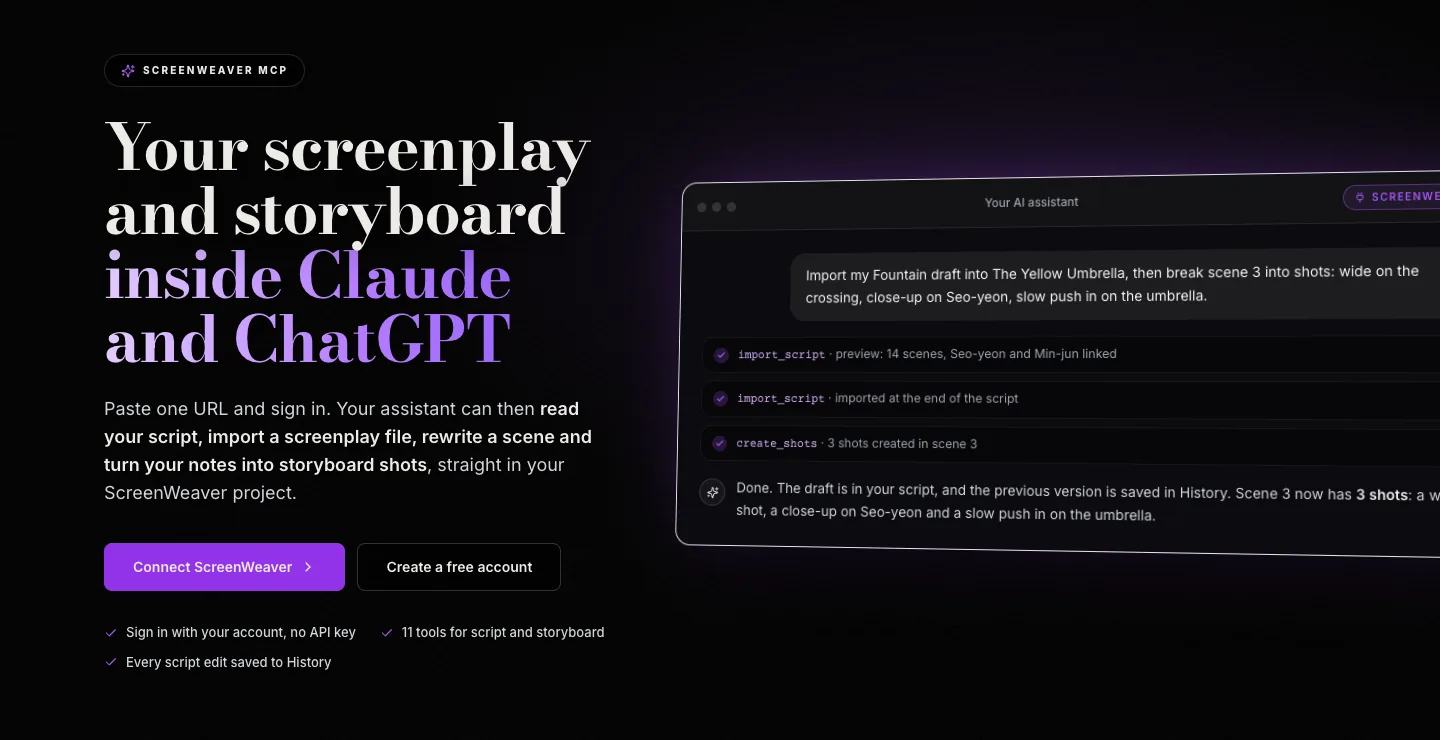
Screenshot of screenweaver.ai/mcp, October 12, 2026.
What that gives you in practice:
- Import a screenplay file from Final Draft (.fdx), WriterDuet or Fountain, with a preview before anything is written.
- Bring in a PDF or Word script: drop the file in the chat, the assistant reads it and writes it into ScreenWeaver element by element.
- Rewrite a scene: tighten a dialogue, add an action line, fix a cue.
- Search the whole script: every line where a character mentions the umbrella, every night exterior, every scene of episode 2.
- Turn notes into shots: a director's note or three lines typed on your phone become storyboard shots with framing, camera movement and duration.
- Adjust a shot: make it a close-up, slow the push in, add four seconds. Only the fields you name change.
MCP explained to a screenwriter, in two minutes
MCP stands for Model Context Protocol. It's an open standard, introduced by Anthropic in November 2024, that lets an AI assistant plug into other applications. The official protocol documentation likes to compare it to a USB-C port: one common plug shape, and any app can connect to it.
For you, it boils down to this. An app that offers an MCP server exposes tools: read a scene, search for a word, create a shot. The assistant picks the right tool based on what you ask. You don't need to know the tool names. You write "break scene 4 down for a single-camera shoot" and it calls the right ones.
ScreenWeaver is a remote MCP server. Nothing to install on your machine. You give your assistant an address, sign in with your ScreenWeaver account, choose which projects it may open, and that's it. No API key to copy, no terminal required.
💡 Frank's cut: the MCP doesn't make the assistant a better writer. It gives it context. And context is usually what was missing. An assistant that has read scenes 1 to 11 will suggest a far better scene 12 than one you pasted scene 12 into on its own.
Connecting ScreenWeaver to Claude, ChatGPT or Claude Code
The server address is the same everywhere:
https://app.screenweaver.ai/api/mcp
It's Streamable HTTP with OAuth 2.1 sign-in. Before connecting anything, create your project in ScreenWeaver: the MCP can't create projects yet, it works inside the ones you already have.
One important point about access: the MCP is reserved for accounts with credits, meaning the Auteur plan ($39.99 a month, 6,000 credits) and the Studio plan ($149.99 a month, 25,000 credits), prices checked on screenweaver.ai on October 12, 2026. Screenwriting stays free on the Screenwriter plan, but connecting your assistant doesn't. On the other hand, using the MCP tools spends no credits at all.
In Claude (web or desktop)
- Open Settings, then Connectors.
- Click Add custom connector, name it ScreenWeaver and paste the server URL.
- Click Connect, sign in to ScreenWeaver, pick your projects and allow.
- In a conversation, open the + menu and turn ScreenWeaver on.
Custom connectors work on every Claude plan, with one custom connector on the Free plan. Anthropic walks through it in its guide to custom connectors. Menu names can move while the feature is in beta.
In ChatGPT
- Open Settings, then Apps, and turn on Developer mode in the advanced settings.
- Click Create, name the app ScreenWeaver, paste the server URL and choose OAuth.
- Sign in to ScreenWeaver, pick your projects and allow.
- In a conversation, choose ScreenWeaver from the tools menu.
The ChatGPT plans that include Developer mode change often. If you don't see it, check OpenAI's help center for your plan, or OpenAI's developer docs on connecting an app to ChatGPT.
In Claude Code, Cursor or VS Code
For Claude Code, one line in your terminal:
claude mcp add --transport http screenweaver https://app.screenweaver.ai/api/mcp
Then type /mcp in Claude Code, pick screenweaver and sign in through the browser. For Cursor, add the ScreenWeaver entry to .cursor/mcp.json and click Connect in the MCP settings. For VS Code, it's a .vscode/mcp.json file, and you use the tools from Copilot Chat in agent mode.
The code editor side isn't a developer gimmick. Plenty of screenwriters already write in Fountain, the plain-text screenplay format, inside VS Code or Cursor. The MCP gives them a direct bridge to a ScreenWeaver project that is formatted and linked to the storyboard.
The 11 MCP tools and what they're for
The server exposes eleven tools: six that read, five that write. You never call them yourself, but knowing them helps you phrase your requests.
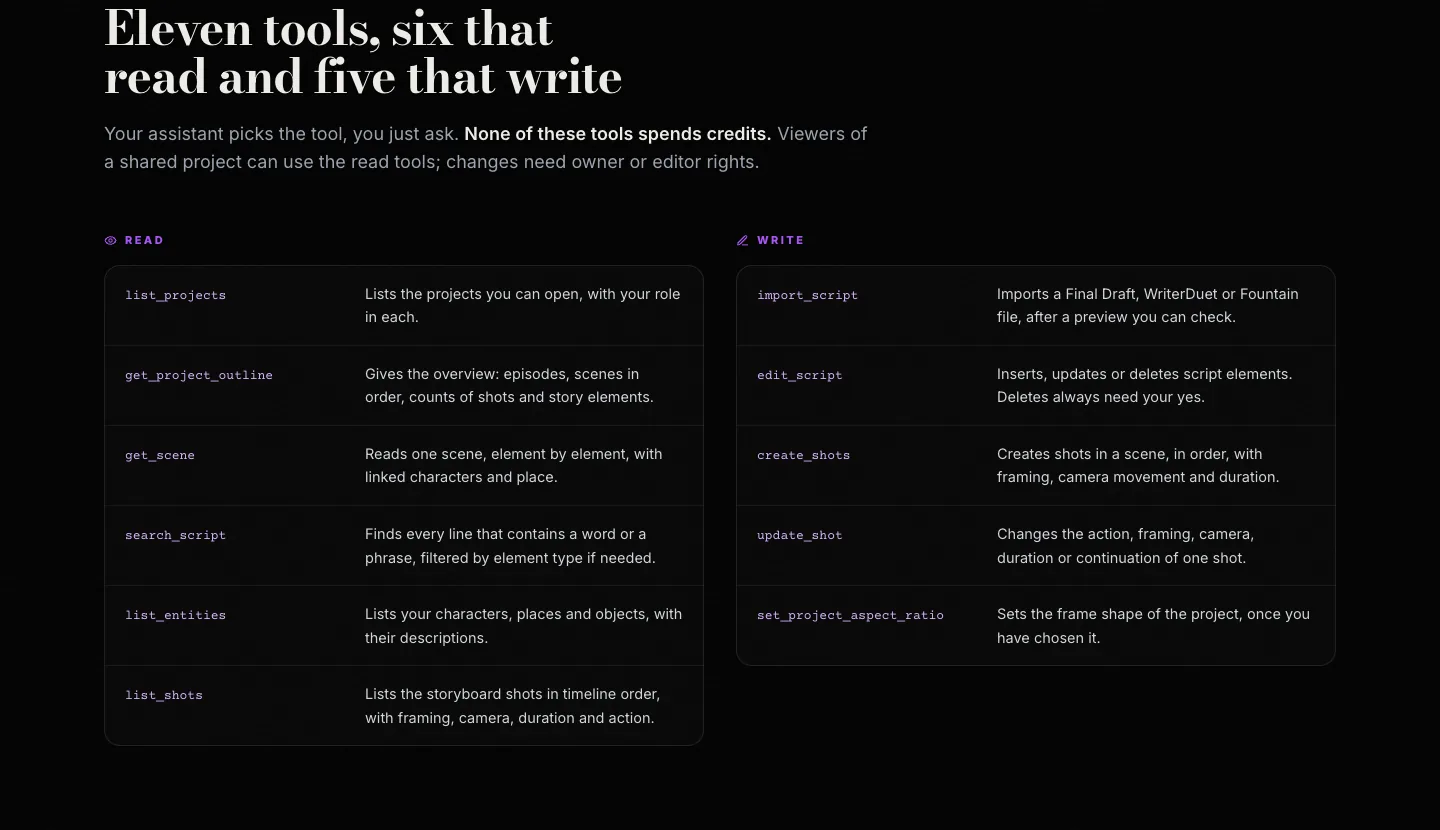
| Tool | Type | What you can ask |
|---|---|---|
| list_projects | Read | "Which projects can you see?" |
| get_project_outline | Read | "Give me the structure of episode 2" |
| get_scene | Read | "Read scene 7 and tell me where the pace drops" |
| search_script | Read | "Find every line where she mentions her father" |
| list_entities | Read | "List my characters and their descriptions" |
| list_shots | Read | "Show me the shot breakdown of scene 3" |
| import_script | Write | "Import this Final Draft file, show me the preview first" |
| edit_script | Write | "Cut this scene by a third, wait for my go-ahead" |
| create_shots | Write | "Create the shots for scene 4, handheld, one camera" |
| update_shot | Write | "Make shot 2 a close-up, two seconds longer" |
| set_project_aspect_ratio | Write | "We're shooting 16:9, set the project format" |
On a shared project, viewers only get the read tools. Making changes requires owner or editor rights.
A real session: from written scene to shot breakdown in four messages
Here's the flow I recommend for an actual work session. The project already exists in ScreenWeaver, the connector is on in Claude.
Message 1, context. "Give me the project overview, then read scenes 5 and 6." The assistant calls get_project_outline, then get_scene twice. Now it knows where we are, who the characters are and what just happened.
Message 2, the writing work. "Scene 6 explains too much. Rewrite it so the fight plays through gestures, not words. Show me the new version and don't change anything until I say so." This is where the assistant earns its keep: it proposes, you judge. You go back and forth two or three times in the chat, as usual.
Message 3, writing into the project. "Good, replace scene 6 with this version." The assistant calls edit_script. Because it's replacing existing text, it asks for your explicit confirmation. The previous version goes to ScreenWeaver's version History.
Message 4, the breakdown. "Break scene 6 down for one camera: a wide establishing shot, tight shot reverse shot, an insert on the spilled mug, and end on a long static shot." The assistant calls create_shots. The shots land in the storyboard, in order, tied to their scene, with framing, camera and duration.
Result: the scene is rewritten in the real screenplay and broken down in the real storyboard. Not a single line was retyped by hand. On a long project, that's where the gain shows, because you stop losing information at every copy and paste.
💡 Frank's cut: always give at least one scene of context before asking for a breakdown. A shot only means something next to the one before it. If the assistant doesn't know how the previous scene ends, it'll suggest an opening that cuts badly.
For the breakdown logic itself, I wrote about how to think like a director with AI. The MCP speeds up the typing. It doesn't replace your staging intent.
What the MCP doesn't do, at least not yet
Better you know before you spend an evening on it.
- It doesn't generate images or video. The tools work on the screenplay and the shots: action, framing, camera, duration. Storyboard image and video generation stay in the ScreenWeaver app.
- It doesn't create projects. You create the project in ScreenWeaver, then ask the assistant to work in it.
- It doesn't delete projects, shots or story elements. That's a safety choice, not an oversight.
- It isn't available on the free plan. You need an account with credits, so Auteur or Studio.
- It can't connect to a client without OAuth support. If your tool can't do an OAuth sign-in, it can't plug in yet.
And the biggest limit isn't technical: the assistant doesn't have your taste. It writes fast, finds fast, breaks down fast. Choosing what stays in the film is still your job.
You stay in control of your writing
It's the first question everyone asks, and it's a fair one: "What if the AI butchers my script?" Here are the safeguards:
- You choose all projects or a specific list when you allow the connection.
- The script before every edit or import is saved to version History.
- Deleting lines or replacing a script needs your explicit confirmation.
- You can revoke access any time in your ScreenWeaver account, under Connected apps.
- The assistant never sees your password, and sign-in tokens are stored hashed.
On a team, changes made by the assistant show up live for your collaborators. On a shared project, agree on one simple rule: who gets to have the assistant write into the screenplay, and when. The rest of the time, the read tools are enough.
My tips for getting the most out of it
Here's what I recommend to get started:
- Start read-only. For the first few days, mostly use
get_sceneandsearch_script. Ask for notes, continuity checks, lists. You learn how the assistant reads your project without risking anything. - Demand the preview before every write. End your requests with "show me before you change it". It costs one message and saves you a trip through History.
- Refer to scenes by number. "Scene 9" is more reliable than "the parking lot scene".
- Check names on import. The preview flags near-miss names like TOBY and TOBIAS. Take ten seconds to decide, or you'll end up with two characters instead of one.
- Keep the staging in your head, not in the chat. Write your breakdown notes the way you'd give them to a first AD: precise, short, with an intent. The assistant turns them into shots, it doesn't invent them for you.
If you want to see how screenplay and storyboard flow into production after that, my guide to the AI pipeline from script to storyboard to production covers the whole chain. And for the writing side of the tool itself, there's my guide to ScreenWeaver, from screenplay to storyboard.
ScreenWeaver MCP FAQ
What is the ScreenWeaver MCP?
It's a remote server that speaks the Model Context Protocol, the open standard AI assistants use to work with other applications. Once connected, Claude, ChatGPT, Claude Code, Cursor, VS Code or any compatible client can read and edit your ScreenWeaver screenplay and storyboard. In practice, the assistant stops handing you text to copy over. It writes straight into your project in screenplay format, with scene headings, action, characters and dialogue linked to your story elements. It can also create storyboard shots from a scene. Everything goes through your account, with no API key to manage.
Do I have to pay to use the ScreenWeaver MCP?
Yes, access is reserved for accounts with credits, which come with the Auteur and Studio plans. As of October 12, 2026, Auteur costs $39.99 a month with 6,000 credits, and Studio costs $149.99 a month with 25,000 credits. The Screenwriter plan stays free for writing, but it doesn't include the MCP. Once you have access, though, using the eleven tools costs nothing: reading a scene, importing a file, rewriting dialogue or creating shots spends no credits. Credits are for image and video generation inside the app. Always check current pricing on the site before you subscribe.
Does the MCP work with the free version of Claude?
On Claude's side, yes: custom connectors are available on every plan, with one custom connector on the Free plan. So you can connect ScreenWeaver to a free Claude account, as long as you haven't already used that single slot for something else. On ScreenWeaver's side, you still need an Auteur or Studio account. Menu names in Claude can change while the feature is in beta, so if you can't find Connectors in your settings, check Anthropic's help page on custom connectors, which keeps up with interface changes faster than any blog post can.
Which ChatGPT plan do I need to connect ScreenWeaver?
You need a plan that includes Developer mode, because adding a custom app goes through it. The eligible plans change regularly at OpenAI, so I won't give you a list that will be wrong next month. The simplest check: open Settings, then Apps, then the advanced settings. If the Developer mode switch is there, you can create the ScreenWeaver app with the server URL and OAuth sign-in. If it isn't, your plan doesn't allow it yet, and OpenAI's help center will tell you which one does. If you're unsure, Claude is the more direct route.
Can the assistant delete my screenplay?
It can't delete a project, a shot or a story element, because no tool exists for that. For the screenplay text, deleting lines or replacing the whole script requires your explicit confirmation. And before every edit or import, the previous version is saved in ScreenWeaver's version History, so you can always go back. The real risk isn't deletion, it's accepting an average rewrite too quickly. Get into the habit of asking for a preview before every change, and read it the way you'd read a co-writer's pass.
Can the ScreenWeaver MCP generate storyboard images?
Not yet. The current tools work on the screenplay and the shots: action, framing, camera movement, duration and how shots chain together. Storyboard image and video generation stays in the ScreenWeaver app for now. In practice, you use the MCP to prepare a clean breakdown from your conversation, then move to the app to generate images from those shots. There's an upside: your shots are already tied to the right scene with a clear camera intent, which gives you far more consistent images than a prompt written on the fly.
Which screenplay formats can the MCP import?
The MCP imports Final Draft (.fdx), WriterDuet and Fountain files, plus any text already in screenplay format. For a PDF or a Word document, the method is slightly different: you drop the file in the conversation, and the assistant reads the text and writes it into your project element by element, recognizing scene headings, action, character cues and dialogue. Either way, the import shows a preview first, with scenes, characters, places and any names that look like ones you already have. Long scripts are written in several passes.
What I take away from it
The ScreenWeaver MCP won't teach you to write and won't direct your film. It does one precise thing: it puts your AI assistant inside your project instead of next to it. No more copy and paste between chat and software, no more pasting scenes just to give context, no more retyping a breakdown by hand.
My advice to get started: take a scene that's fighting you, turn the connector on, and run the four messages from the real session above. Read, propose, approved write, breakdown. If after one session you've gained nothing, disconnect it, you've lost nothing. If you've gained an hour, you know where to put it back: into the staging.
The full setup, the eleven tools and the settings for every client are on the ScreenWeaver MCP page.
Related articles
 Tutoriels
ScreenWeaver: From Screenplay to Storyboard Without Losing the Film's Soul (Studio Guide)
Why file fragmentation kills your AI projects, how ScreenWeaver reconnects writing and images, and a field workflow with concrete settings to stay master of the render.
 Tutoriels
AI pipeline from A to Z: from idea to shot list in one day
How to chain AI tools to go from a raw idea to a complete shot list in a single workday. A concrete method, with the tools that actually slot together.
 Tutoriels
How to Create a Storyboard with AI Step by Step
To create an AI storyboard step by step with no plastic render or decorative gallery: script breakdown, visual bible, stable prompts, sequential QA and a production deliverable.