Checking the mobile-desktop quality of an AI video
Multi-screen control routine to avoid the bad surprises after publication or client delivery.
Contents · 10 sections
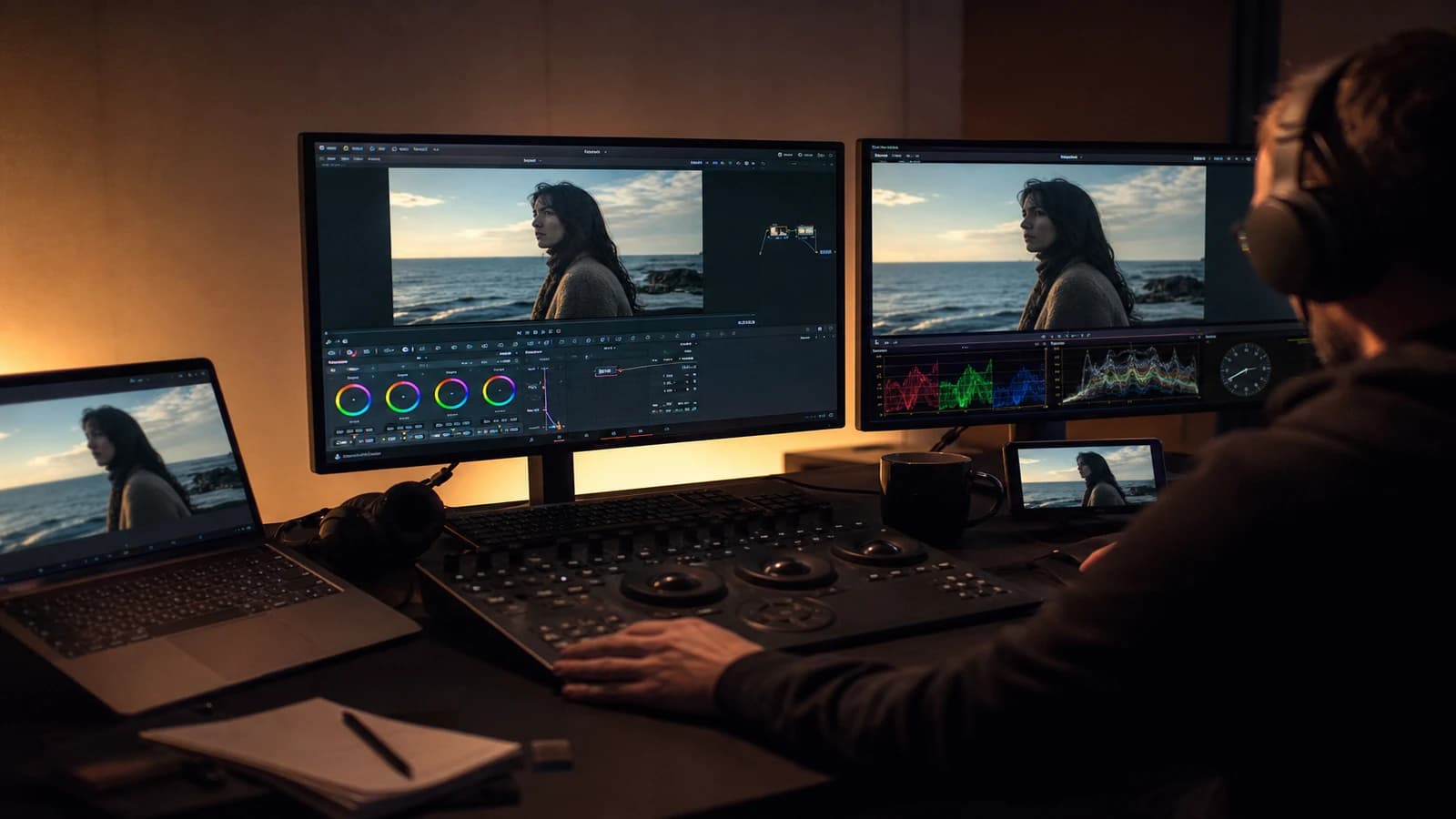
You graded on an Eizo screen. The blacks are deep. The skins are right. You publish. On Instagram, everything is too dark. The details disappear. The grain becomes mud. Your client sends you a blurry capture from his iPhone saying "it is not the same render". He is right. You did not check the mobile-desktop quality before sending. You validated a single world.
Checking the mobile-desktop quality of an AI video is not glancing at your phone once in passing. It is a reproducible routine: which screens, in which order, which criteria, which correction thresholds. AI video reacts badly to compression and to small screens: the artifacts you do not see in 27 inches explode in 6 inches OLED. The contrasts that impress in the living room crush in vertical scroll.
This guide gives you the complete routine I apply before delivery or publication: calibrated desktop, consumer laptop, tablet, smartphone, and compression simulation. No guesswork.
Why two screens are not enough
The calibrated desktop tells you the reference color truth. It does not tell you how 80% of your audience will experience the file. The phones apply a dynamic brightness management, an aggressive compression, sometimes a platform re-encoding. A perfect export on Resolve can become unrecognizable after a TikTok upload.
The non-calibrated laptop simulates the corporate client who watches on a MacBook Air in an open space. The blacks rise. The colors shift. If your video only holds on a pro screen, you deliver a trap.
The tablet covers the middle zone: bigger than the phone, often used in client review. The smartphone in real conditions (not only AirDrop on a desk): auto brightness, outdoors if the ad is intended for the daytime mobile feed.
AI video adds a layer: micro-artifacts, synthetic grain, AI edges that survive compression badly. The multi-screen QA is your lie detector before the public.
Link this routine to structuring a final validation checklist for an AI project and to checking quality before a demo reel. The checklist says what to check; this article says how and where.
💡 Frank's Cut: send yourself the file through the same path as the audience: private upload on the target platform, not only local playback of the MP4. The platform compression is a step of your chain, not a later surprise.
The multi-screen control matrix
| Screen | Role | What you look for | Action if it fails |
|---|---|---|---|
| Calibrated desktop | Color reference | Exposure, skin, shot consistency | Fix in primaries |
| Consumer laptop | Office client simulation | Crushed blacks? Shifted colors? | Raise shadows, reduce extreme saturation |
| Tablet | Intermediate review | Text readability, face details | Adjust burn-in, local contrast |
| Desk smartphone | Quick preview | Artifacts, sync, 3 s hook | Targeted retouch |
| Smartphone auto brightness + platform upload | Audience reality | Compression, banding, weak audio | Bitrate, loudness, mobile contrast |
Never validate on a single row of the table. Minimum: desktop + smartphone + platform test upload for any social content.
Routine in six passes (90 minutes max)
Pass 1: desktop reference (20 min)
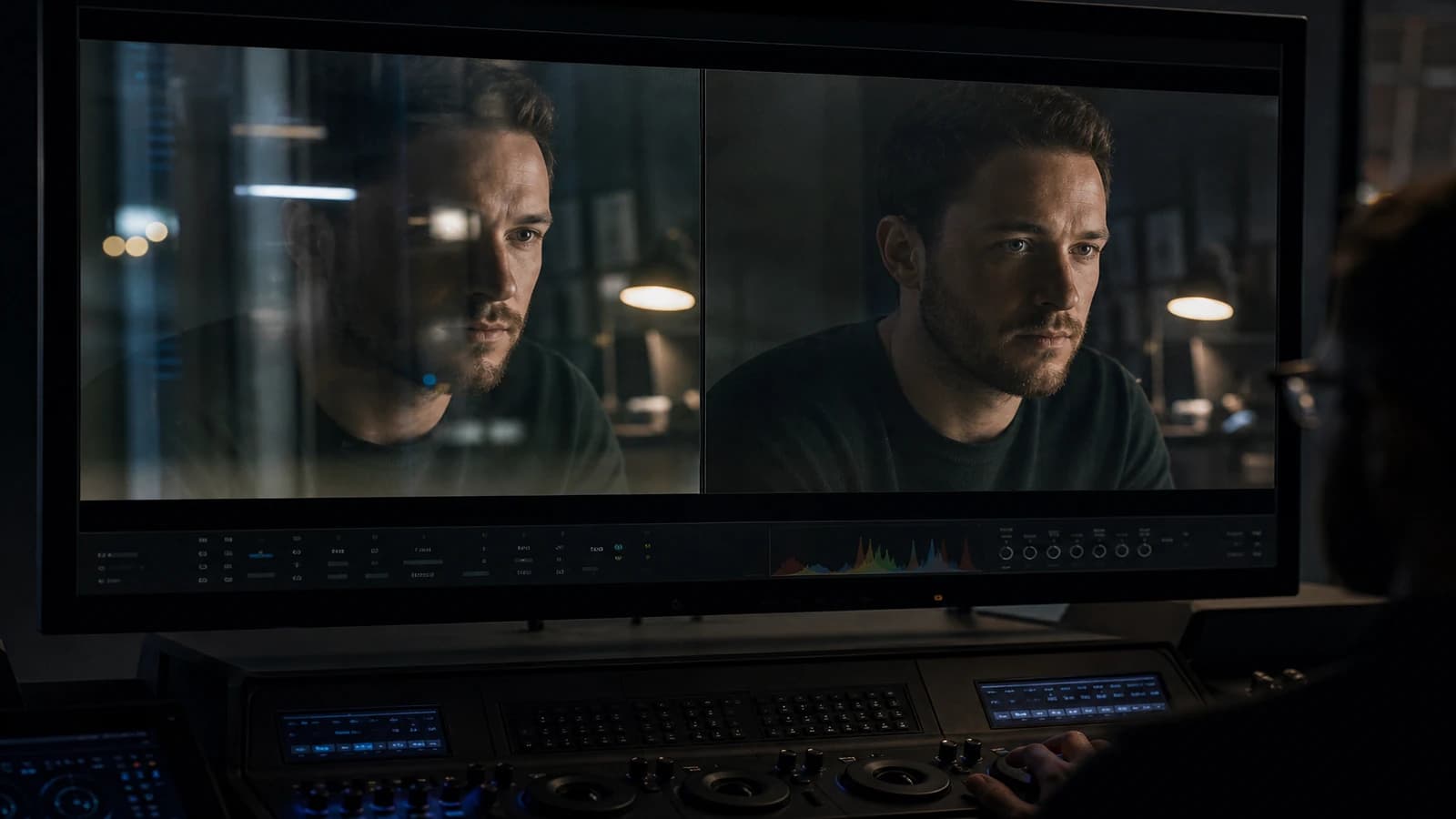
Full screen, headphones, one continuous playback. Note timecodes: exposure, matches, AI artifacts. Pause on each cut. It is your working truth. If it does not hold here, no use going further.
Check the highlight zones of skin and metal. AI likes a subtle blow-out. On desktop you see it; on mobile it disappears or it flickers.
Pass 2: laptop or second non-calibrated screen (10 min)
Same file, moderate volume. Do the blacks rise too much? Does the saturation become aggressive? Adjust a light "consumer delivery" LUT if you must: +0.05 on the shadows, -5% global saturation. Document this LUT if you apply it in a derived master.
Pass 3: local smartphone (15 min)
AirDrop or cloud the file. Watch standing, not on a desk. Volume at 50% then at 20%. Does the hook work with no sound? Are the subtitles readable?
Simulated scroll: you pass the video in three seconds. What stays? If nothing, your image hook is weak.
Pass 4: private platform upload (20 min)
Unlisted YouTube upload, TikTok draft, or Instagram close friends. Wait for the server processing. Re-watch on the phone on the streamed file, not the local. Note: sky banding, mud in the shadows, compressed voice.
It is the pass 90% of creators skip. It is also the one that avoids 90% of the public embarrassments.
Pass 5: cross-device audio (10 min)
Listen to the same passages on headphones, laptop speakers, low iPhone speaker. Does the voice-over stay intelligible everywhere? Does the music dominate on a small speaker? Adjust EQ and loudness. See loudness mastering for social media ads.
Pass 6: documentation and GO/NO-GO (15 min)
Fill a sheet: screen, OK/KO, timecode, applied correction. GO if zero blocking KO on the streamed smartphone. NO-GO if a visible artifact on scroll or if the message does not pass with no sound.
Specific AI video criteria per screen
Desktop: seams between regenerated shots, skin flicker, gibberish text on signs, hands.
Mobile: face stability in small format (paradoxically more visible because the brain simplifies), edge halo after compression, grain that becomes digital noise, burn-in text under the UI overlays.
Post-compression: banding in the AI sky gradients, blocking in the shadows, loss of eye sharpness.
If a defect only appears in desktop 200% zoom but never in streamed mobile, classify it as a warning, not blocking. If the reverse: blocking.
Setting up your test environment (once, not on each project)
You do not need a broadcast lab to do a serious QA. You need stable references you know by heart. Note the model of your main phone, the OS version, and whether you test on Wi-Fi or on 4G (the bitrate sometimes influences the quality of the initial stream). Keep a QA-DEVICES folder with a screenshot of each device on a standard test clip: you visually compare your new exports to this reference without reinventing the method.
On desktop, disable the power savers that lower the screen brightness during playback. On laptop, plug in the power: some "battery" profiles degrade the screen render. If you use a calibrator like X-Rite or Datacolor, recalibrate every three to six months. A screen that drifts by 200 K in temperature makes you correct shots that did not need it.
For the corporate client simulation, identify a "medium" screen: often a MacBook or a non-calibrated Dell monitor you deliberately keep with no custom ICC profile. Systematically go over it before a REVIEW send. If the client watches on an iPad Pro, borrow or buy access to this class of screen for the high-stakes projects: the intermediate size reveals burn-in text problems that neither the phone nor the 27 inches show the same way.
Create a QA-PREVIEW export preset: H.264, moderate bitrate, target platform resolution. Do not test only the ProRes 4:4:4 if nobody will stream it that way. The test file must resemble the social delivery file. See optimizing export codecs for AI video delivery to align preview and delivery.
Field scenarios: three avoided failures
The too-dark ad (Claire, Lille)
Magnificent master on a pro screen. iPhone outdoors: invisible product. Claire added a "mobile bright" pass: lift shadows +3%, Instagram upload test. Validated. With no mobile pass, wasted campaign. She has since added a mandatory box in her checklist: "outdoor smartphone playback, auto brightness". This box blocks the send if the hero product is not readable two meters away in the street.
The horizontal master badly read in vertical (Fatou, Dakar)
Fatou delivered a vertical crop with no dedicated mobile pass. On Reels, the faces were tiny. The desktop pass had validated the 16:9 master. Solution: QA on the streamed 9:16 file, not on the master. She regenerated two native vertical shots for the hook. Lesson: each deliverable ratio has its own mandatory mobile pass.
The destructured grain (Omar, Toronto)
Cinema grain added in post. YouTube compression turned it into moths. Omar tested a private upload, reduced the grain by 30%, slightly increased the export bitrate. The streamed finally held.
The silent hook (Yuki, Tokyo)
Vertical with no sound: the message was in the voice-over only. Mobile pass with no sound = incomprehensible. Yuki added burn-in text on the first three seconds. Retention +40% on the analytics.
Troubleshooting: what beginners break
Validating only on the Resolve timeline. Symptom: export different from the preview. Fix: always test the exported file.
Ignoring the platform compression. Symptom: "it looked good at home". Fix: mandatory test upload.
Phone brightness at max in test. Symptom: false positive on the exposure. Fix: test 50% and auto.
A single phone. Symptom: surprise on Android or an old iPhone. Fix: at least two devices if the client budget is high.
Forgetting the landscape vs vertical UI mode. Symptom: text eaten. Fix: safe zones per ratio.
Testing only on fast Wi-Fi. Symptom: first 4G playback blurry, compression artifact worse than at the office. Fix: a stream pass in medium network conditions (4G, not fiber) for the mobile-first campaigns.
Validating the vertical on the zoomed horizontal master. Symptom: tiny faces in Reels. Fix: mandatory QA on the exported and streamed 9:16 file, not on the timeline preview crop.
Quick mobile QA checklist (copyable)
- Hook readable with no sound 3 s?
- Burn-in text outside the TikTok/Reels UI zones?
- Hero product identifiable at 50% auto brightness?
- Voice-over intelligible on a low-end iPhone speaker?
- Visible face artifact after a streamed private upload?
- Sky banding on the platform version, not only local?
Six no = NO-GO. Fix, re-export, retest the upload. Do not deliver hoping "on the feed it will pass".
For the encoder specs, YouTube upload recommendations and Apple HLS guidelines help calibrate bitrate and resolution.
Derived versions: do you need a master per screen?
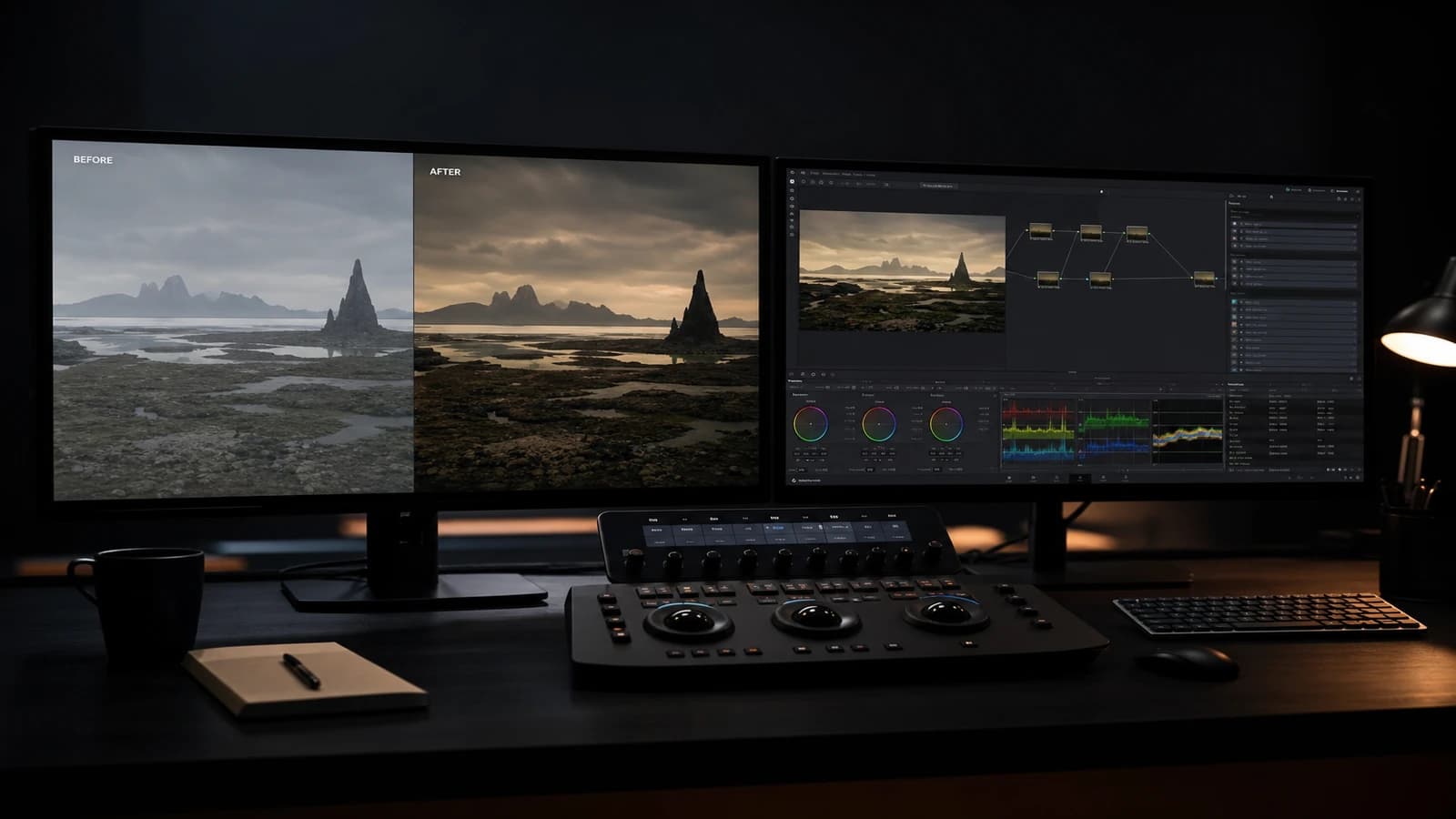
Not a master per screen, but sometimes two derivatives: MASTER-REF (calibrated) and MASTER-DELIVERY-SOCIAL (slightly lifted shadows, loudness -14 LUFS, reduced grain). Document the differences. The corporate client often receives REF; the platforms receive DELIVERY. Never deliver without specifying which is which.
Frequently asked questions
Quick answers to the questions readers ask most about this article.
Is a calibrated screen indispensable?
For a reliable reference, ideally yes. If you do not have one, use a known laptop (note its gaps) and compensate with the platform upload pass on the phone. The calibrated screen gives you the working truth; the streamed phone gives you the audience truth. Both count. Investing once in a mid-range calibrated screen is worth more than one more AI plugin.
How many times to redo the loop if the mobile fails?
Fix once in a targeted way (shadows, saturation, grain, loudness), re-export, retest the upload. If it fails again on the same point, you have a source problem (generation or extreme grading), not only delivery. Maximum three iterations before going back to the generation or the edit. Beyond that, you tinker with a file fundamentally unsuited to social.
Do TikTok, Reels and YouTube Shorts compress the same way?
No. Each platform has its profiles. If you aim for all three, test at minimum the main platform of the campaign. The differences concern bitrate, max accepted resolution, and sometimes audio re-encode. A private upload per platform takes an hour and saves whole campaigns.
Should you disable True Tone and Night Shift to test?
For an A/B comparison between two exports on the same iPhone, yes, disable temporarily. For the "audience reality" pass, leave the default settings of a normal user: many have True Tone enabled. Do both if the client is demanding on the brand color.
Is 4K useful for the mobile QA?
You can shoot in 4K and deliver in streamed 1080; the platform will downsample. The QA must be done on the file as it will be seen, not on the local 4K if the distribution is 1080. If you deliver 4K to YouTube, test the 4K stream on TV or desktop, not only the phone.
How to note the gaps between desktop and mobile?
Simple sheet: timecode, description ("product shadows shot 2"), desktop OK/KO, mobile local OK/KO, mobile streamed OK/KO, applied correction. This trace feeds your presets for the next projects. In six months, you will know your AI exports tend to crush the shadows and you will apply a systematic social lift in the derivative.
Does the mobile QA replace the final checklist?
No, it is a block of it. The checklist covers image, sound, narration, technique, compliance. The multi-screen QA is the concrete implementation of the "real distribution" block. Integrate the six passes into your checklist before LOCK.
Checking the mobile-desktop quality of an AI video
is looking at your work where it will die or triumph: in the viewer's pocket, after compression, in a fast scroll. Do it before the client. Do it before the public. Do it before regretting.
Related articles
 Tutoriels
AI Portfolio Quality Audit Before the Demo Reel
A reading grid, fake signals, and a correction plan for a reel that convinces creative directors.
 Tutoriels
Managing the versions of your AI video projects: a concrete method
Without a versioning system, AI video projects quickly become uncontrollable. Lost prompts, deleted iterations, deliveries that start from scratch. Here is the method I use to stay in control.
 Tutoriels
Creating Reusable AI Post-Production Presets
How to build robust presets that accelerate projects without uniformizing every render.