How to Add Cinema Grain to an AI Image
Types of grain, intensity by zone, combining prompt and post, and traps on consumer screens.
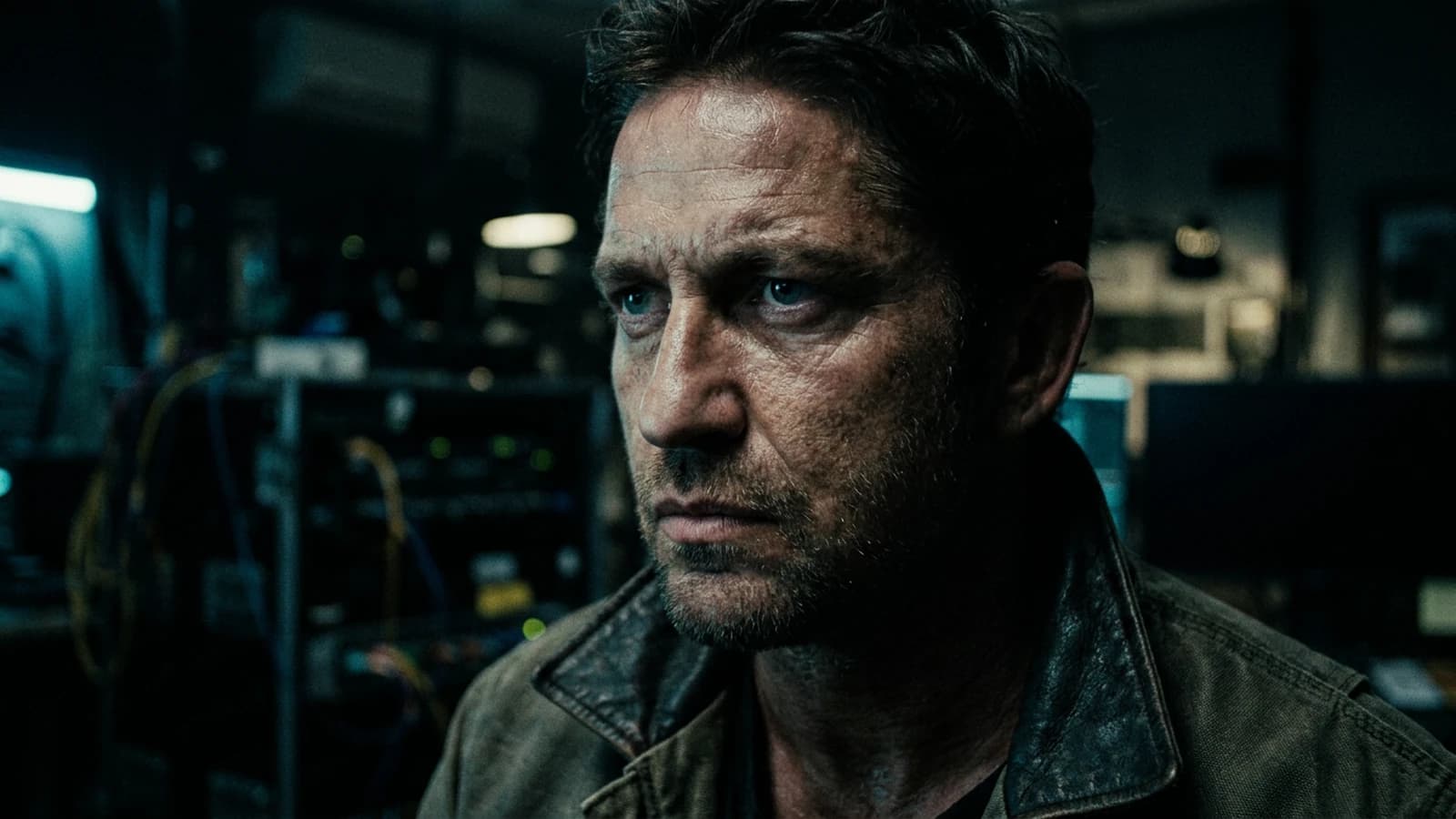
Grain is not an "Instagram texture" laid over an already dead image. On an AI still, it often plays the role of visual glue: it harmonizes skin that is too smooth with a wall that is too detailed, it slightly masks the dubious transitions between sharp and blurred, it brings the render closer to a photochemical medium or a digital sensor shot with intention. Used with no intention, it becomes an "I watched three tutorials" signature: used with discipline, it becomes a departmental choice on the same level as a focal length or a LUT. Without it, many generated images stay in a zone forbidden to the eye: neither owned illustration, nor credible photography: just the smoothness of the statistical defect.
Here, we separate grain in the prompt (model bias) and grain in post (fine control), we talk grain size, intensity by zone (shadows vs highlights), and screen traps: on a consumer laptop, you can under-see the grain then add too much; on a calibrated screen, the same layer becomes muddy. You will have a method to test on two media before validating a master intended for video editing or printing.
Three behind-the-scenes anecdotes. Tom stacks "film grain" in the prompt and as an identical overlay: the midtones become dirty without the shadows gaining depth. Lina exports for Instagram: the platform recompresses and the grain becomes a mosaic. Karim wants vintage 16mm on a hyper-sharp image: he adds a coarse grain without touching the contrast: the result looks like a filter, not film. The following sections avoid these pitfalls with iterable settings.
Pilot project. Take one AI image you like at 80% and push it to the master with a documented grain preset. You learn ten times more than by changing the image at each attempt.
Three scenarios with pivots
"Night thriller" look. You want deep shadows and visible grain. Pivot: keep detail in a shadow near the face (avoid total crushed black), put the grain mostly in the blacks and the background, not on the eyes.
Product packshot. The grain can dirty the edges of the product. Pivot: mask the product, grain on the set; or very fine global grain + selective sharpness on the logo after agreement with the brand charter.
Casting portrait series. Ten faces, ten different lights but the same film. Pivot: separate grading per image to bring the skin tones closer, same grain overlay (same file, same starting opacity) then micro-adjustments per shot.
Key concepts: anatomy of grain on an AI image
Grain vs digital noise. Cinema grain often has a structure (particles, uneven distribution depending on density); poor sensor noise is more uniform and electronic. The "film stock" overlays in grading software imitate the first; a simple monochrome noise added to excess rarely imitates the second correctly: and even less the first.
Dependence on implicit exposure. On film, grain rises in the shadows. In post on an AI image, many artists mask the grain on the highlights of the face to keep cleanliness on the eyes-nose-mouth triangle, and reinforce it slightly in the blacks to give volume. It is an approximation of the real behavior, but above all a gaze-direction tool.
The prompt as a starting point. Adding "subtle film grain" or an equivalent can help the model stop smoothing certain zones. It is not a guarantee: sometimes the prompt grain becomes a texture drawn on the skin. Hence the value of the double pipeline: a light starting point in generation, precise control in post.
Global sharpness and grain. Aggressive sharpening after adding grain creates halos and "grains that scratch" on the edges. A healthy order: composition and light → global grading → grain → very light selective sharpen off the skin if necessary.
LUT and grain. If you apply a contrasted LUT after the grain, you modify the perception of the noise. Often: LUT before fine grain, or grain on a layer adjusted after the LUT with reduced opacity. There is no single religion: there is a rule: do not change five layers at once.
For the skin and frequency context, cross-reference with how to improve skin texture in an AI image.
Native resolution and grain size. A grain designed for 1080p laid over 4K can seem too fine or too regular depending on the resizing. Sometimes you have to rescale the grain texture or use a high-resolution version to keep the right "particle scale" relative to the subject.
Grain color. A slightly warm grain under tungsten light helps consistency; a cold grain on a warm scene can read as "badly matched digital". Adjust tint/saturation on the grain layer, not on the whole image.
Grain animation (video). If the grain is static frame to frame while the rest moves, the eye can read a collage. In movement, a slight jitter or grain generated by the video engine can integrate better: at the cost of less control.
Set notes: formats, printing, video
Printing. Grain that looks correct on screen can get crushed in print or become too visible at large format. Keep a proof or an A3 test if the budget allows; otherwise an impressive screen zoom (not only 100%).
Video. A still with strong grain can move strangely when an image-to-video tool interpolates: test short. For a series of shots, keep the same grain layer (same overlay, same settings) applied after the grade of each shot to homogenize. See how to improve motion realism in AI video.
Social compression. A very grainy image can degrade into blocks after encoding. A slight reduction of the grain on the "web" version or an export at a more comfortable bitrate can help. It is not betraying the look: it is knowing the medium.
16mm vs 35mm vs "digital clean". 16mm: more visible grain, larger particles. 35mm: finer, more elegant on faces. "Clean digital": grain almost absent: useful if you add grain only in post for total control. Choose one reference per project and hold it in a doc.
HDR and grain. On very "HDR" images (detailed sky + bright interior), the grain can attack the micro-contrasts and give a crunchy aspect. Sometimes you slightly lower the grain in the high-micro-contrast zones (fine foliage, metallic textures) while keeping it in the sky gradients to avoid banding.
AI denoise stacks + grain. If your pipeline includes an automatic "denoise" pass on the generator export, note that you sometimes remove the same material you want to reinject. Either you disable the aggressive denoise, or you accept a slightly stronger grain to compensate: but never both blindly with no visual test.
Practical workflow: reproducible steps
Step 1: an almost-finished image before grain
Lock the framing, light, skin at an "acceptable" level. Grain does not save a nose shadow in the wrong place.
Step 2: a prompt starting point (optional)
A subtle grain term in the prompt or the negative "oversharpened, plastic skin" to push the model toward a less smooth material. Evaluate at 100% and 200% zoom.
Step 3: grade before heavy grain
Curve / LUT for global contrast. Avoid crushed blacks if you want the grain to read in the shadows.
Step 4: grain layer as an overlay
Import a grain texture (short loop, clean tile) or use the film grain module of your software. Overlay / soft light mode depending on the look. Low opacity at the start.
Step 5: masks by zone
Reduce the grain on the face if necessary; reinforce it in the dark zones or the skies to avoid banding. Use curves on the grain's alpha mask if your tool allows it.
Step 6: monochrome vs color
Color grain can seem more "organic"; luminance-only grain is more discreet. For a portrait, luminance + a very light color mix often works well.
Step 7: multi-screen check
Laptop, phone, second screen if available. Adjust the opacity; note the value in a preset.
Step 8: master export vs web export
Master: PNG/TIFF with integrated grain or, if a pro workflow, separate exports (no grain) + a grain layer for flexibility. Web: a slightly less grainy variant if the compression eats the detail.
Step 9: document the preset
Overlay file name, opacity, blend mode, LUT used. Your future self redoes the same series without guessing.
Step 10: quick blind A/B
Export two versions (with / without grain, or grain A vs grain B), put them full screen, look from "couch" distance then at zoom. The grain must survive the distant reading without breaking the subject's silhouette.
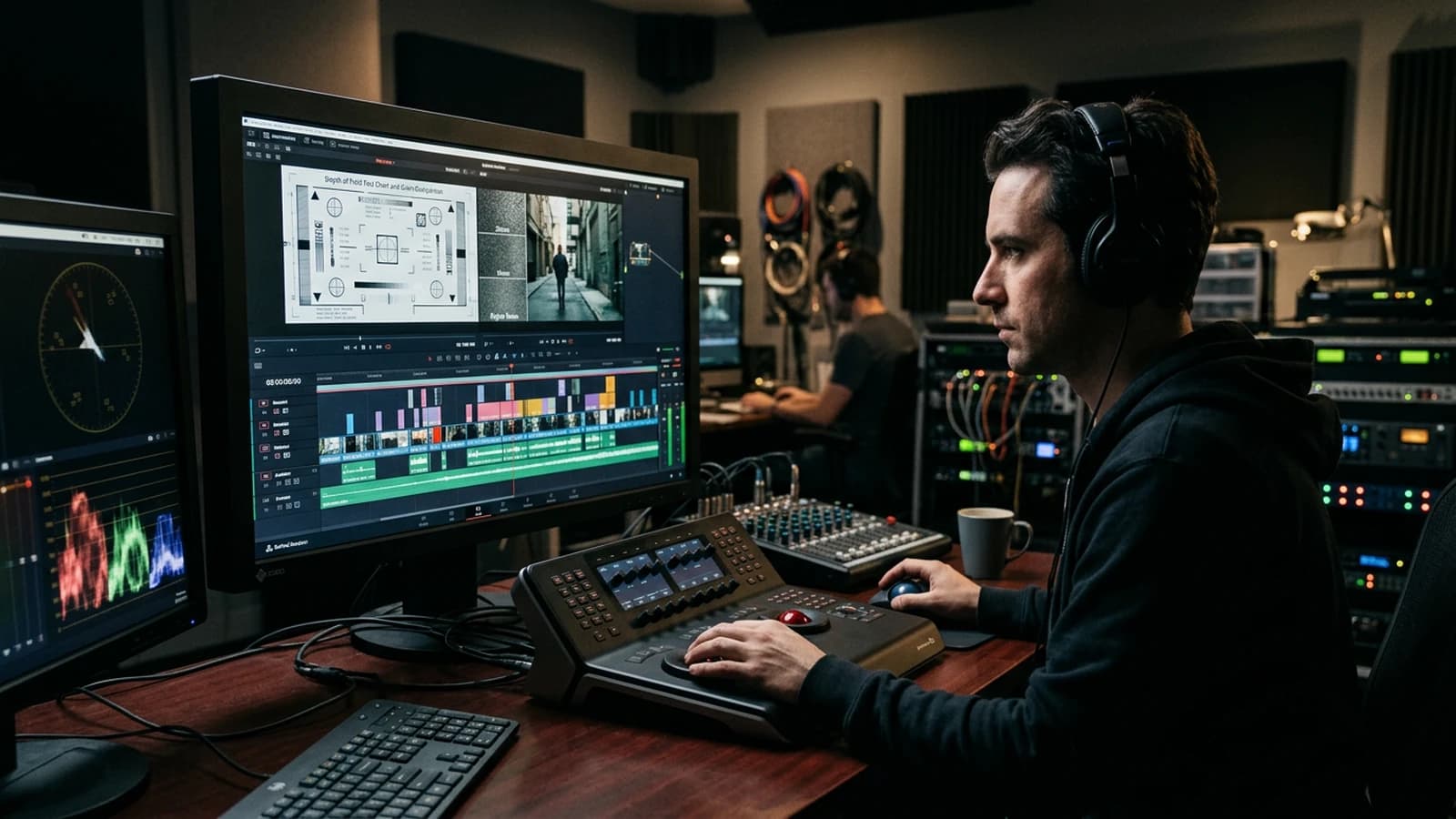
Quick decision table
| Situation | Approach | Frequent mistake |
|---|---|---|
| Skin portrait | fine grain + face mask | coarse grain that becomes skin texture |
| Sky landscape | moderate anti-banding grain | forgetting the banding before grain |
| Series of 10 images | same preset on all | different grain per image |
| Social web | a weaker variant | visible MPEG block |
| Video prep | consistent grain shot to shot | grain that swims after interpolation |
Grain answers a simple question: "do all the zones of my image live in the same material world?" If not, grain sometimes helps them lie together without weighing down the subject.
Trench warfare: classic mistakes
Grain to hide a bad cutout. It sometimes softens the edge; it does not replace a clean selection or a regeneration.
Same intensity everywhere. Reality varies with density; control by zone sells better.
Sharpen after grain with no mask. Visible halos on the edges of the nose and the hair.
Neglecting the compression noise afterward. Test a private upload or a simulated export.
Confusing grain and forced vignetting. Two different tools; combining them with no measure gives a "2012 preset" look.
Using a badly tiled overlay. Visible seams in the sky: prefer pro looped textures or fix the tile.
Forgetting the color profile on export. sRGB vs Display P3 changes the perception of the grain after conversion; keep a consistent chain for the web.
Grain to "save" an overexposed image. You add noise on burned highlights: it stays burned, with sand.
Useful links in the AI Studio series
- Flux vs SDXL: which AI to choose for realistic images
- How to improve skin texture in an AI image
- How to create natural light in an AI image
- Why my AI videos look fake (and how to make them realistic)
Foire aux questions
Réponses rapides aux questions les plus fréquentes sur cet article.
Should I max out the steps for "more grain"?
No, pushing the steps to the max often fabricates a rigid micro-texture that looks more like stucco than film grain. Useful grain is better controlled in post, where you can dose it by zone and preserve the face. Keep the steps at the material tier, then do the finishing at the grade.
Grain only in the prompt, is it enough?
Sometimes enough to orient a general mood, but rarely precise enough for a pro render. As soon as you want to protect the skin and charge the shadows a bit, post becomes essential. The prompt sets the intention, post-production gives the control.
Which overlay should I buy or use?
Favor good-quality film grain scans or the native modules of solid software (Resolve, After Effects, Lightroom). The number-one criterion is the absence of a visible seam and a natural distribution, especially in the sky gradients. Always test on a dark shot and a skin shot before adopting a preset.
LUT before or after grain?
In general, start with the LUT/curve, then apply the fine grain afterward. This avoids the LUT exaggeratedly distorting the already-laid grain texture. Do a quick A/B, and keep the variant that protects the skin roll-off and the readability of the shadows.
Inpainting or regeneration after grain?
Always inpaint before the final grain. Otherwise you end up with retouched zones that do not have the same material structure, and the eye detects the patch. The good sequence is: local correction -> grade -> grain -> export.
Does grain save plastic?
It can strongly help to homogenize, but it does not correct false lighting or skin that is too smoothed at the base. If the light is frontal and the guidance excessive, you just add noise to an artificial render. First the physics of the image, then the surface texture.
English or French in the prompt for the grain?
The English tags "film grain, subtle grain" are often effective; test on your model.
I want 8mm Super 8.
Larger particles, an optional very light jitter in video; in a still, avoid exaggerating on the face.
Why does my grain disappear on mobile?
Small screen + auto brightness + compression: slightly increase the local contrast of the grain or accept a more marked web variant (with caution).
What is the difference with AI "noise reduction"?
NR removes detail to smooth; you work against the current if you add grain after an aggressive NR. Better: light or targeted NR, then controlled grain.
I am doing a series for a short film.
Lock a grain document (still reference + settings) and apply it to each export; cross-reference how to control visual style in an AI generation.
Does grain replace contrast?
No. Contrast structures the image; grain dresses the surface. With no contrast, grain looks like noise on flatness.
I work in 32-bit / linear?
Grain behaves differently depending on the color space and the transfer curve. Often apply the grain after the conversion to the display space or on a dedicated stack, according to your software's best practices: the important thing is not to stack five different spaces without realizing it.
Blackmagic, Premiere, Photoshop: where to start?
Where you already grade. A single "master" place for the grain avoids the invisible double layer. If you grade in Resolve and retouch in Photoshop, decide which one carries the master grain and synchronize.
The generator already adds "dirty" grain.
Sometimes it is compression or upscale noise, not aesthetic grain. Evaluate: if the noise is chromatic and blocky, clean or regenerate rather than stacking a "cinema" overlay.
Do I combine it with halation / glow?
A common order: soft halation on the light sources, then fine global grain to bind. The reverse is sometimes useful if the glow softens the highlights too much: test on a copy.
Editorial compliance section
Useful internal links:
Related articles
 Tutoriels
How to Add Realism in Post-Production
After the AI video generation, realism is won in post: motivated grade, temporal texture, moderate movement, credible sound, and a rejection discipline that turns a demo clip into a deliverable shot.
 Tutoriels
How to Add Realistic Motion Blur
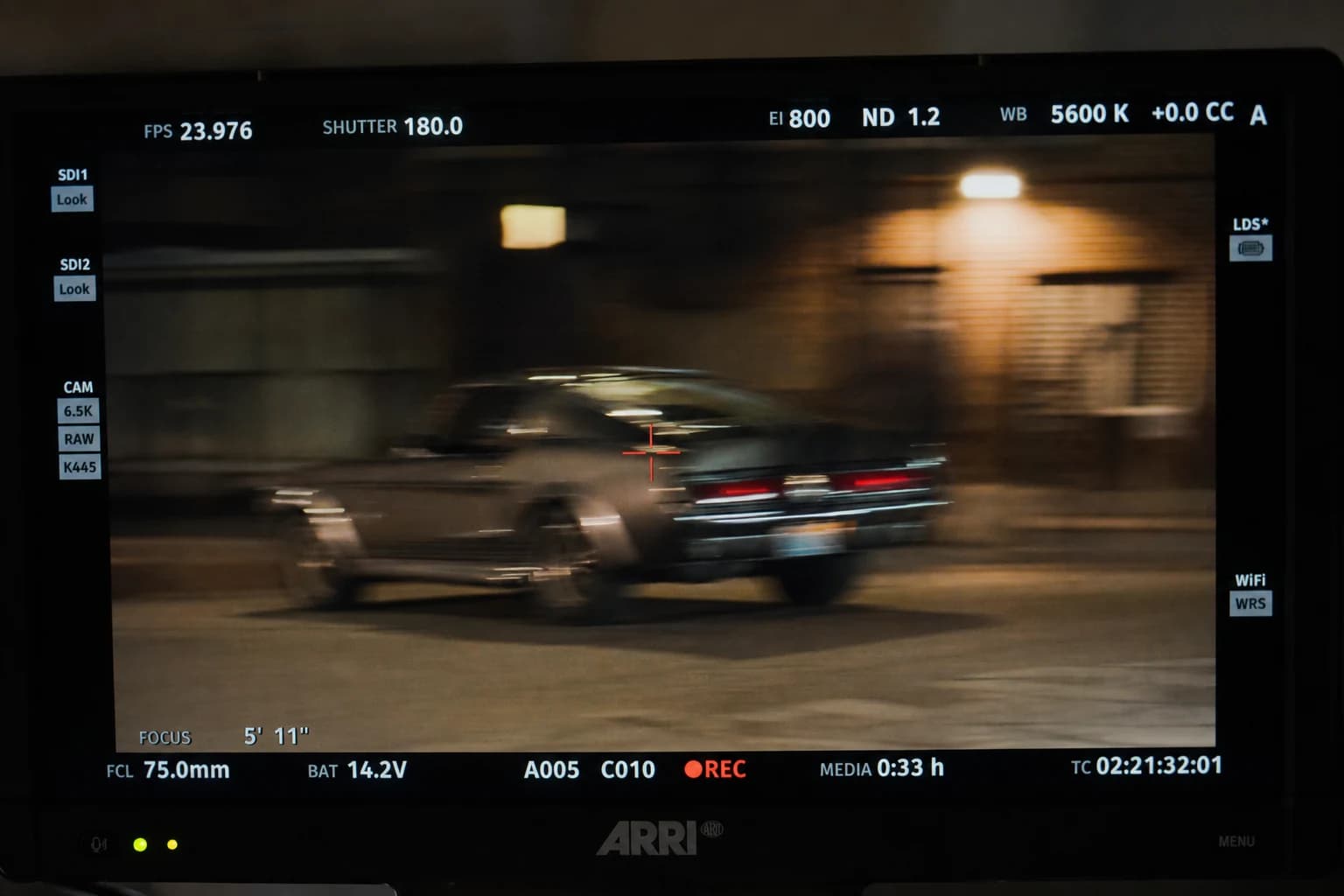
After an AI video generation that is too sharp, motion blur becomes a question of perceived physics: plausible temporal integration, vectors that read together, a serious software chronology and mobile tests against the double blur that delivers, once again, a tired demo.
 Tutoriels
How to Get a Cinema Render with Seedance 2
Settings and work habits to push a video engine toward a film render, with no demo look.